The all-in-one reset & control tool
for Panasonic and BirdDog PTZ cameras
— right from
your browser
Designed for technicians who receive cameras in unknown states during live productions.
Runs locally. Direct access to Panasonic and BirdDog PTZ cameras over the network. No cloud, no subscriptions.
Targeted reset — not a factory reset
After the reset
Every camera is in a defined, verified state — comparable across the rig and ready for white balance and black balance. No guesswork, no surprises at go-live.
Why not a factory reset?
Factory reset causes signal loss and requires menu access on the camera body. smart-reset targets only the color parameters — no signal interruption, no physical access needed.
Readback on every change
Every command is confirmed by reading back the actual camera state. You see what the camera accepted — not just what was sent.
From unknown state to calibration-ready
Detect cameras
Start smart-reset and open localhost:8765. The scanner finds every Panasonic and BirdDog
camera on the network automatically — no IP configuration needed.
Read current values
Select a camera. smart-reset immediately reads back all current color and exposure parameters so you know exactly what state the camera is in before touching anything.
Apply verified reset
Trigger the color reset sequence. Each parameter is set and confirmed with a readback — so you know the camera accepted the value, not just that the command was sent.
Ready for WB & BB
All cameras are now in a defined, comparable state. Proceed directly to white balance and black balance — with confidence that every unit starts from the same baseline.
Full control, not just reset
Beyond the color reset, smart-reset handles the day-to-day admin tasks that used to mean opening the camera's own web UI — or its physical menu.
Configure IP
Change a discovered Panasonic camera's IP address — netmask and gateway are editable too, so you can move a camera to a different subnet after a factory reset. A toast confirms once the camera answers at its new address, and the fields update automatically. Works within ~20 minutes of the camera's last boot.
Reboot Camera
Reboot a discovered Panasonic camera remotely — handy for refreshing the 20-minute Configure-IP window. Admin credentials are requested once in a popup and are never stored.
Camera Name
Read the camera's current on-screen name/title and rename it directly from the browser, right next to the connection status.
Delete Presets
Delete a single preset, a range, or all presets at once — memory, name, and thumbnail on Panasonic UE-series; memory only on HE-series and HR140.
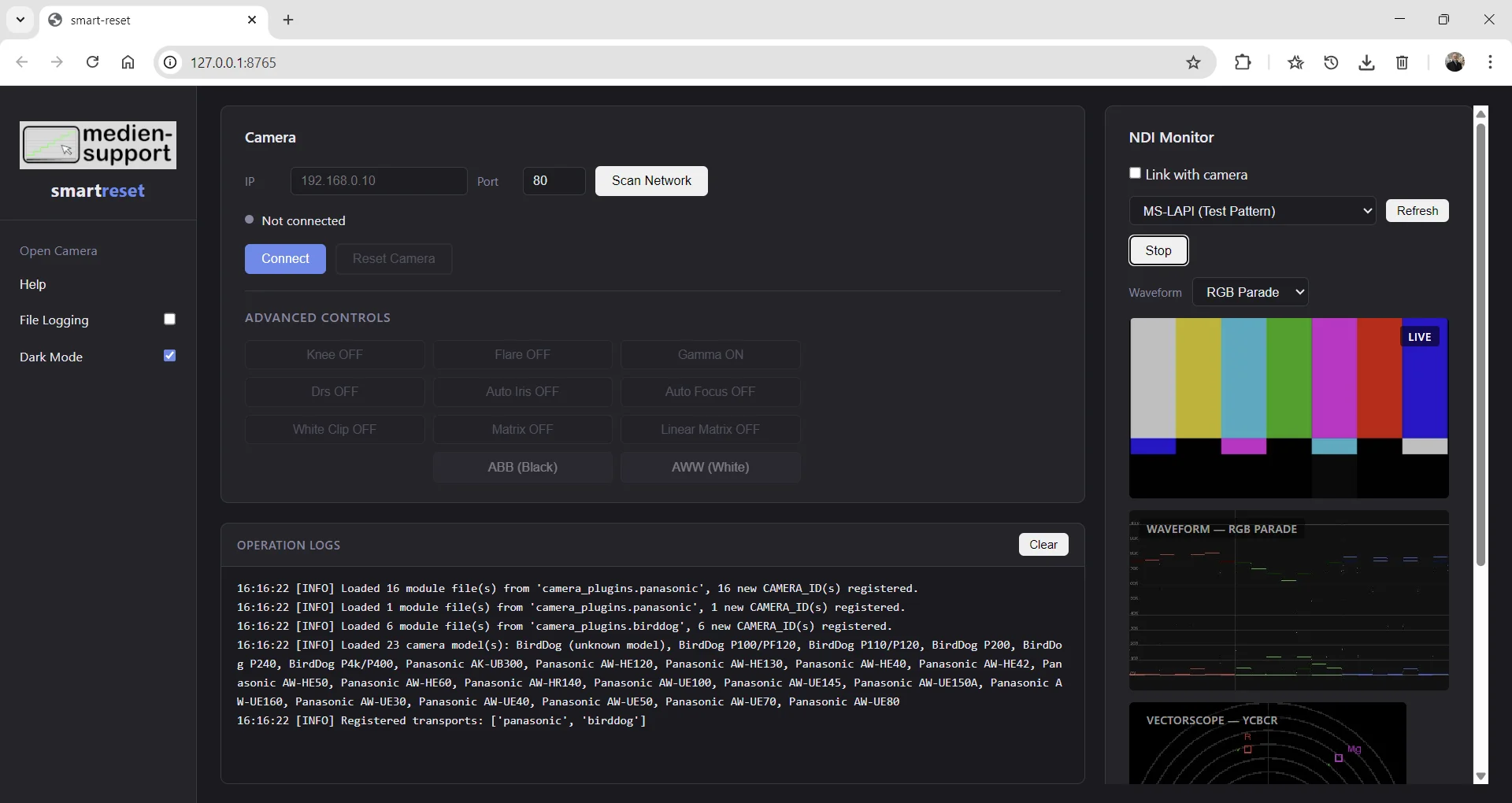
Live preview and reference scopes, right in your browser
On Panasonic cameras, the built-in camera view starts automatically — the same feed the camera's own web UI shows, first image in well under a second, and it works on any platform. NDI is available as an opt-in alternative for any camera brand — the way to go for BirdDog cameras, which don't expose a built-in view. All scopes below work the same way regardless of source: computed in BT.709 color space, with graticule at 0, 25, 50, 75, and 100 IRE.
RGB Parade
R, G, and B channels side by side — spot color casts and channel imbalance at a glance.
RGB Overlay
All three channels on the same axes — the fastest way to check white balance and overall exposure at once.
Luma (Y)
Standard BT.709 luma (Y = 0.2126·R + 0.7152·G + 0.0722·B) for clean exposure and contrast judgement.
Vectorscope
YCbCr BT.709 trace with saturation rings every 10%, crosshair at neutral, and 75% color-bar target boxes.


NDI HX is not supported. Full-bandwidth NDI only.
Supported cameras
Hardware-tested on three models. Support for additional Panasonic and BirdDog cameras is implemented from API documentation and accepted as untested contributions.
Panasonic UE Series
- AW-UE160 Tested
- AW-UE145 / UE150A Tested
- AW-UE100 Tested
- AW-UE70 / UE80 API
- AW-UE30 / UE40 / UE50 API
Panasonic HE / HR
- AW-HE40 / HE42 / HE50 API
- AW-HE60 / HE120 / HE130 API
- AW-HR140 API
- AK-UB300 API
BirdDog — Full Matrix
- P200 Tested
- A200 / A300 API
- 14-parameter color matrix
BirdDog — Standard
- P100 / PF120 API
- P110 / P120 API
- 12-parameter color matrix
BirdDog — Other
- P4k / P400 / P240 API
- Generic fallback for unlisted models
What you need
smart-reset is lightweight — no special hardware or software stack required.
Windows (exe)
- Windows 10 or later
- Network connection (wired recommended)
- Cameras on the same subnet
- NDI monitor: Windows only
macOS (from source)
- Python 3.10 or later
- Network connection
- Cameras on the same subnet
- NDI SDK for NDI monitor
Network
- All devices on the same local network
- UDP broadcast must be allowed
- Port 8765 must be free
- Wi-Fi works, wired is more reliable
Free & open source — download and run
Last updated: September 2026 (v1.2.0) · Actively maintained
With the Windows executable — nothing else required.
For macOS: see from source below.
smart-reset.exe
Everything in one executable — camera control, color reset, and NDI monitor with practical scopes. Panasonic and BirdDog support included. NDI runtime bundled.
Download from GitHubWindows may show a SmartScreen warning when launching the .exe for the first time. Click More info → Run anyway. This is expected for unsigned open-source software.
From source — Windows · macOS
Requires Python 3.10+. On macOS, the NDI monitor also requires the NDI SDK to be installed separately.
# Clone and enter the repo
git clone https://github.com/AndyJae/smart-reset-browser.git
cd smart-reset-browser

# Create and activate a virtual environment
python -m venv .venv
.venv\Scripts\activate

# Install dependencies
pip install -r requirements.txt

# Launch — browser opens at http://localhost:8765
py web_main.py
Built with
Contribute to smart-reset
The most valuable contribution is adding support for new camera models. Everything you need is in the plugin architecture. Developers are encouraged to contribute new ideas and actively help shape the direction of the project.
What contributions are welcome
- Adding new camera manufacturers
- Adding new camera models
- Adding new values for the reset sequence
- Bug fixes for existing reset sequences
- Improved network discovery
- Documentation corrections
- Help shape the direction of the project
Adding a Panasonic camera
- Copy
camera_plugins/panasonic/aw_ue80.pyas a starting point - Name the file
aw_<model>.pyorak_<model>.py— the loader filters by prefix - Set
CAMERA_ID,DISPLAY_NAME, andPROTOCOL = "panasonic" - Define
RESET_COMMANDS,UI_BUTTONS,UI_DROPDOWNS,UI_LAYOUT - Test against real hardware
Adding a BirdDog camera
- Copy
camera_plugins/birddog/p200.pyas a starting point - Same structure as Panasonic — REST/JSON instead of CGI; API port is 8080
- Verify against the BirdDog REST API documentation for your model
- Test against real hardware
Adding a new manufacturer
- Two layers: a transport (
transport.py) and one module per model - Transport implements the protocol — how commands are sent and responses parsed
- Model files define reset commands and UI — same structure as Panasonic or BirdDog
- Full contract in
core/interfaces.py - Full architecture documented in DOKU.md in the repository
Private plugins
- Plugins can be built independently — no fork required
- Drop a new folder into
camera_plugins/with atransport.pyand your model files - The registry picks them up automatically on startup
- Useful for proprietary or in-house camera systems
- Full plugin contract in DOKU.md
Pull request checklist
- One camera model per PR
DISPLAY_NAMEmatches the official product name exactly- No changes outside
camera_plugins/unless discussed in an issue first - Tested on real hardware — state this in the PR description
PRs without hardware testing are accepted as "untested" and merged with a warning comment in the module header. Questions? Open an issue or contact support@medien-support.com.
Get notified about updates
Leave your name and email and we'll let you know when something new ships. No spam — just release notes.
Optional. No account needed. Unsubscribe any time by replying to the email.
smart-reset-registration@medien-support.com
Thanks — we'll keep you posted!
Need help or a custom setup?
For support questions, custom camera integrations, or on-site engineering — send a brief description of your setup and what you need.
Phone
Address
medien-support
Andreas Jaenisch
Simplonstr. 65
D-10245 Berlin
Germany
Frequently asked questions
Installation & setup
py web_main.py. Linux is not officially tested yet.